Implementing Custom Workflow
If the default statuses are not enough or you need to match your ClickHelp workflow to the one you have in your company, you can customize the default workflow. Currently, changing workflow is only available by contacting our Technical Support. Let's look at what you need to know about Custom Workflow to request the change.
Conditional content
- Tutorial: Set Up Your Portal and Import Content
- Welcome to your new portal
- Welcome to your new portal
- Set up portal basics
- Configure branding and semantics
- Import existing content
- Cross-links
- What to do next
Tutorial: Set Up Your Portal and Import Content
In this tutorial, you’ll go from a fresh ClickHelp account to a branded, searchable portal. You’ll perform the first two onboarding steps: register and create your portal, then configure essential portal settings and import existing content. The goal is to have your portal ready for reader access and to start organizing content for reuse.
Welcome to your new portal
When you register, ClickHelp provisions a new branded portal with default templates. This is your workspace for content creation, branding, and publishing. The first thing you’ll want to do is select a portal template that matches your audience and branding guidelines. Templates give you a consistent layout, navigation structure, and styling to speed up the setup process.
Welcome to your new portal
When you register, ClickHelp provisions a new branded portal with default templates. This is your workspace for content creation, branding, and publishing. The first thing you’ll want to do is select a portal template that matches your audience and branding guidelines. Templates give you a consistent layout, navigation structure, and styling to speed up the setup process.
Set up portal basics
- Open the left navigation and choose Portals. Click New Portal to start the creation wizard.
- Enter Portal Name and choose your Primary Language. This ensures your content renders correctly for your audience and search indexing for localized readers.
- Select a Template aligned with your use case, for example Knowledge Base or User Guides. This choice defines the default structure, navigation, and styling.
- Click Create Portal. The portal is provisioned and opens to the Table of Contents editor where you’ll see starter topics and placeholders.
What you’ve accomplished: you now have a branded space, a defined language, and a layout ready for content. What comes next: populate the portal with your content by importing from existing sources and creating fresh topics that you can reuse across formats.
Configure branding and semantics
- Navigate to Branding and upload your logo, choose a color palette, and set fonts. Consistent branding across portals reinforces trust and reduces cognitive load for readers.
- Under Domains, configure a custom domain if you have one, or use the provided portal domain. Custom domains improve perceived trust and alignment with your product branding.
- Enable Per-Portal Access controls to distinguish public vs. private content and set brand-only access where needed.
Why this matters: branding and language settings ensure readers see content that resonates with their context and language, which reduces confusion and improves first-use satisfaction. This setup also lays the groundwork for secure access and analytics per portal.
Import existing content
- From the portal dashboard, select Content Import and choose your source formats (Word, HTML, Markdown, CHM, etc.).
- Map your source structure to topics in ClickHelp. Maintain the hierarchy so you preserve the Single source of truth semantics during transition.
- Choose whether to preserve formatting or convert to ClickHelp-native styling. Use the conversion option that minimizes post-import edits while preserving headings, lists, and cross-links.
- Review the import report for any unmapped assets or media; correct paths and re-import if needed.
What you’ve accomplished: your content has entered ClickHelp as topics, maintaining the original organization to the extent possible. What comes next: start creating the first starter topic and enable WriteAssist to accelerate drafting and editing.
Pro tip: If your team already uses a taxonomy for product documentation, align the import process with your existing taxonomy so reuse and search indexing remain consistent across teams.
Cross-links
For a guided start, see Topic 1 for a conceptual overview of ClickHelp and Topic 4 for how to define reuse across topics after you’ve imported content.
Who is this for: Documentation managers and Technical writers who want to get a branded portal up quickly and bring existing content into a single source of truth.
What to do next
| Note: If your import includes complex formatting, plan a short remediation pass after import to fix headings, images, and code blocks for the best on-page readability. |
Company1
|
requiredParam Required |
string |
Description of the required parameter. |
|
optionalParam Optional |
int |
An optional parameter will be described here. |
ClickHelp 123457 supports conditional content. It means that parts of your content can be present in one output and excluded from the other.
For example, you can have instructions for administrators exists in the topic meant for the general audience, and it will be excluded from the PDF you send out to your readers, but present in the online publication, accessible by administrators only.
You can easily manage your conditional content blocks using the Design View. Specifically, the "Conditional Content" section of the Single-Sourcing tab in the ribbon.
ClickHelp supports conditional content. It means that parts of your content can be present in one output and excluded from the other.
For example, you can have instructions for administrators exists in the topic meant for the general audience, and it will be excluded from the PDF you send out to your readers, but present in the online publication, accessible by administrators only.
You can easily manage your conditional content blocks using the Design View. Specifically, the "Conditional Content" section of the Single-Sourcing tab in the ribbon.
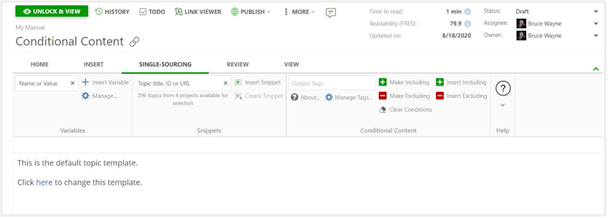
Let's see what this section is comprised of:
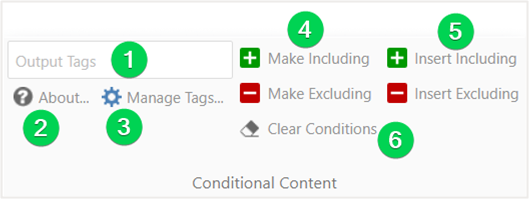
- Output Tag selection field — You will need to choose at least one tag to be able to insert conditional content or convert existing content to conditional.
- About — Link to this topic.
- Manage Tags... — Opens Output Tags settings.
- Make Including / Make Excluding — Makes currently active element or the common parent element of selected elements conditional.
- Insert Including / Insert Excluding — Inserts a conditional block of the specified type with either the default content or with the selected content.
- Clear Conditions — Clears conditions on the currently active element or within a selection.